
CapyPlan · Blog
How to add a capybara widget to your iPhone with CapyPlan
Put a capybara on your home screen in four steps. CapyPlan's new widgets show today's tasks, let you tick them off and add new ones without opening the app, in your colour, with your Capy.
By The CapyPlan team · · 3 min read
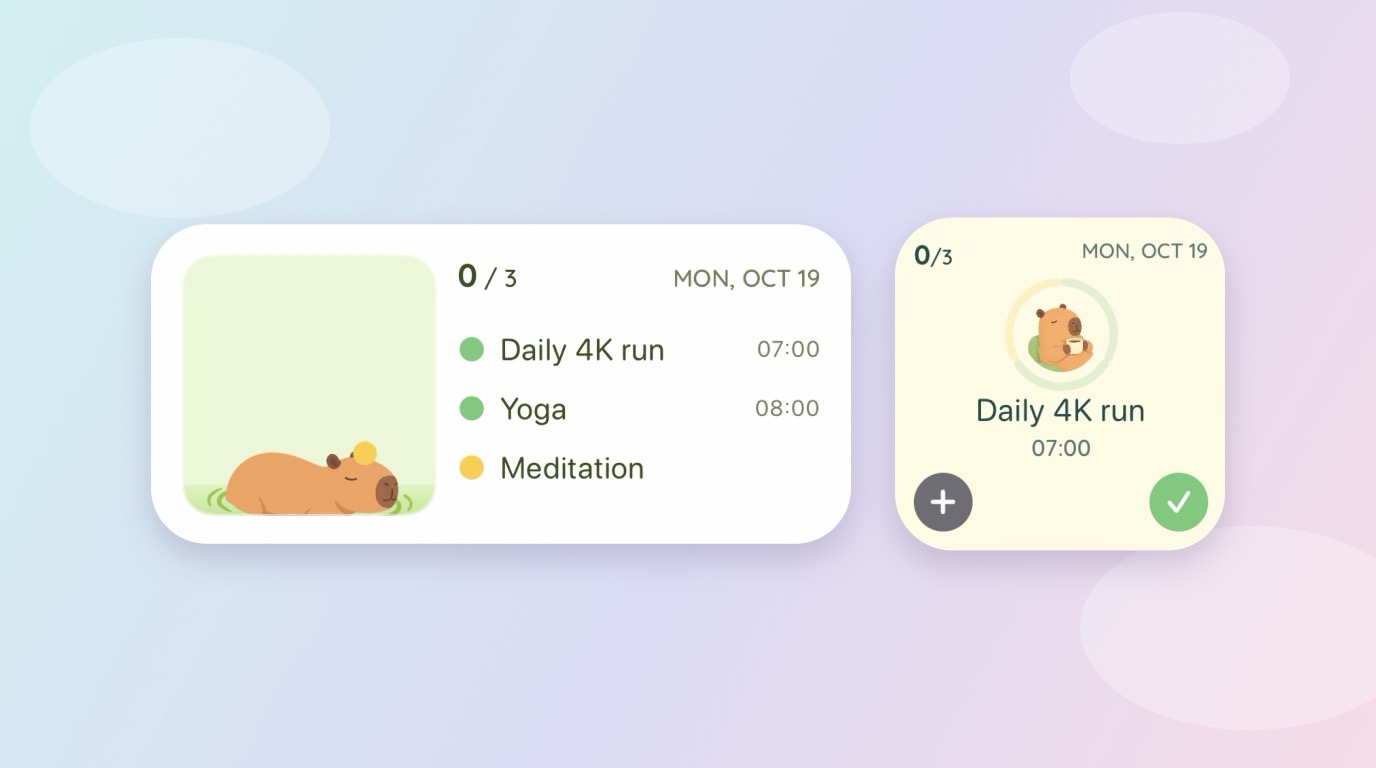
Your plan now lives on your home screen, with a capybara keeping an eye on it. CapyPlan's new iOS widgets show today's tasks at a glance, let you tick things off and add new ones without opening the app, and come in your colours with your Capy.
Why you'll like them
- See today without unlocking anything. Your tasks, the count done, and the date, right on the home screen or lock screen.
- Tick off and add in one tap. The buttons on the widget work. Finish a task or add a new one straight from the home screen.
- A capybara that reacts. Capy sits beside your list, the progress ring fills as you go, and when everything is done Capy slides into the onsen for a soak.
- Make it yours. Pick a style, a size, a background colour, and which capybara keeps you company.
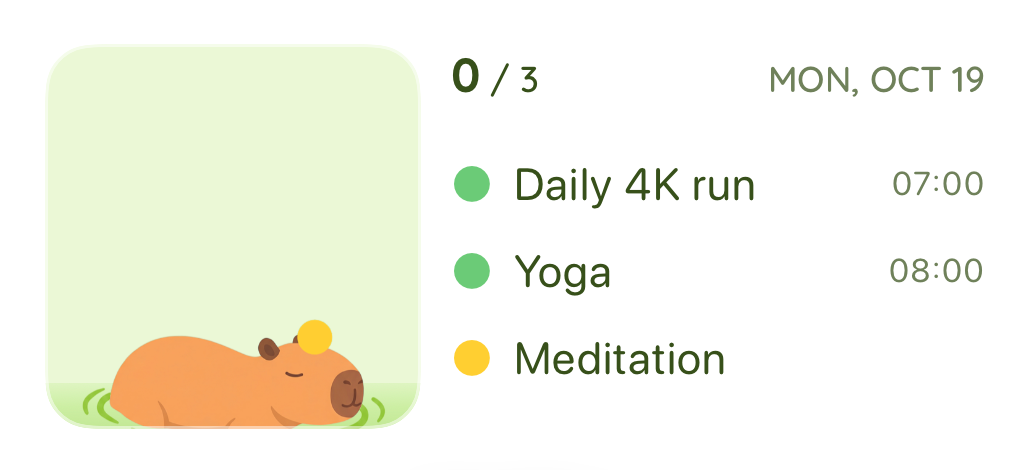
The Onsen style, medium size. Capy rests beside your list.
Two styles, three sizes
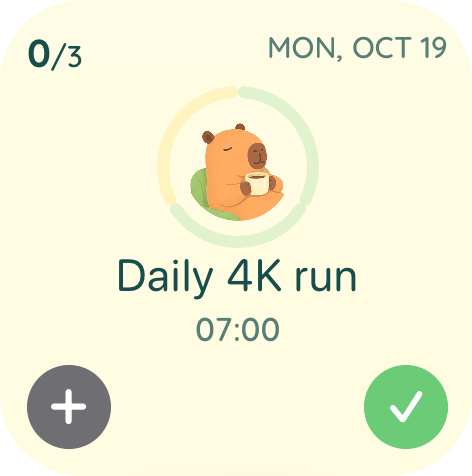
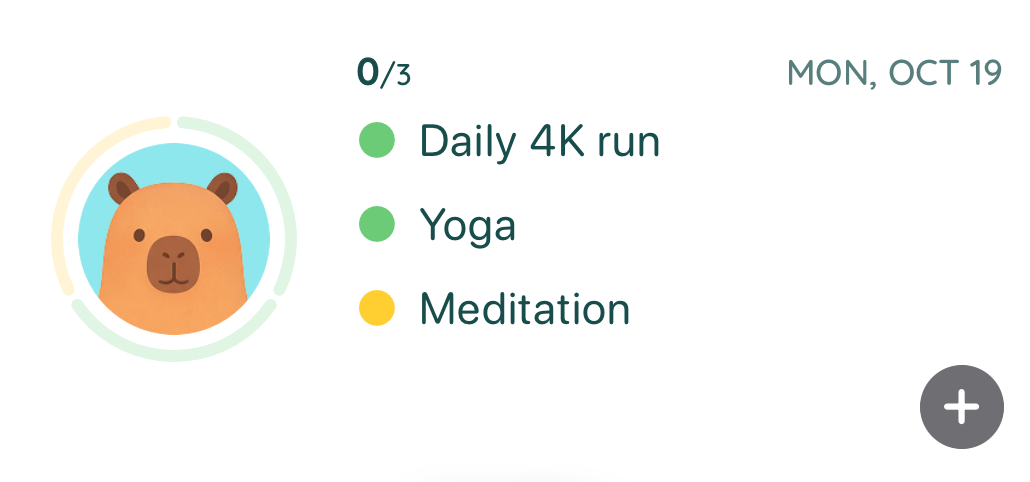
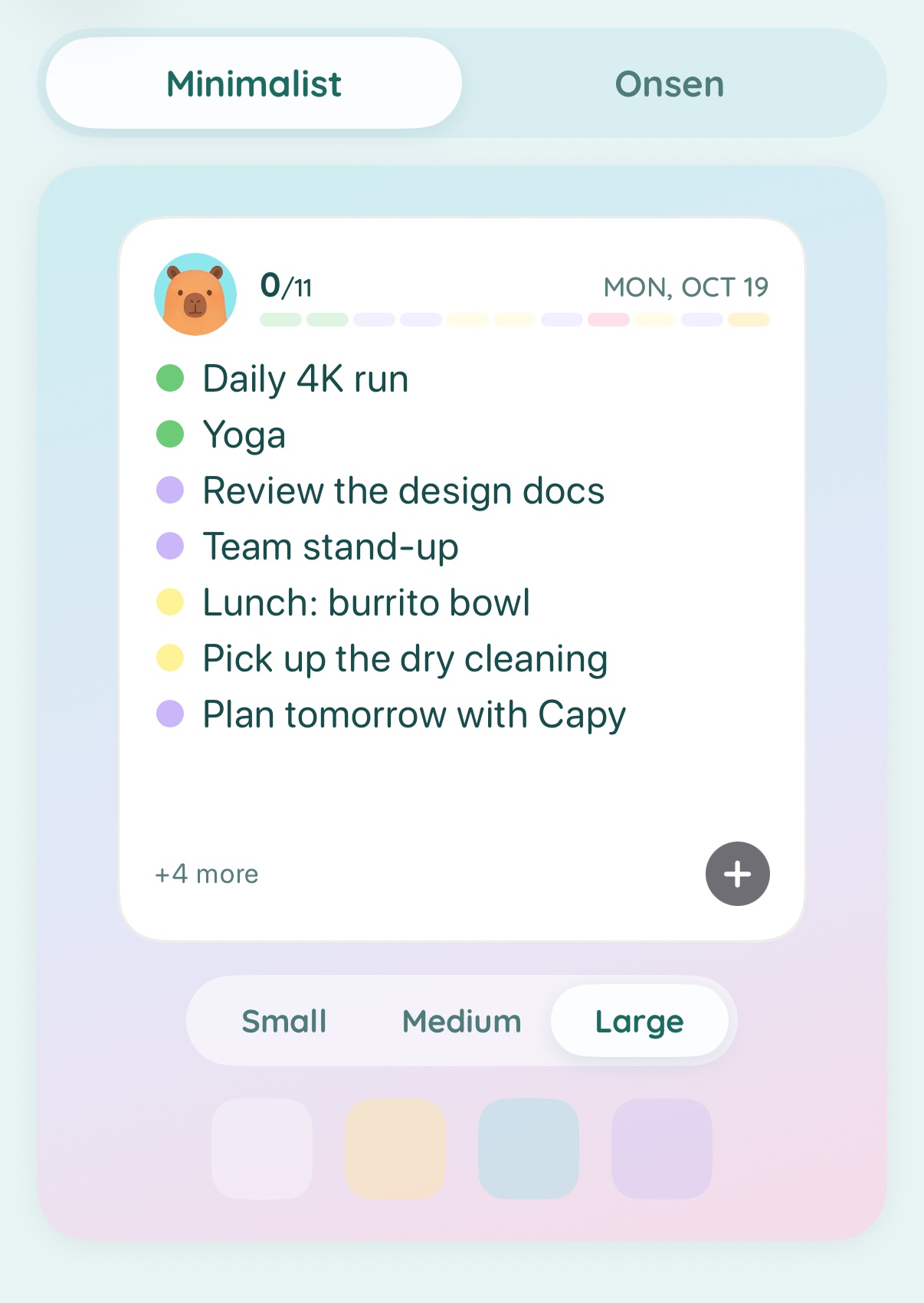
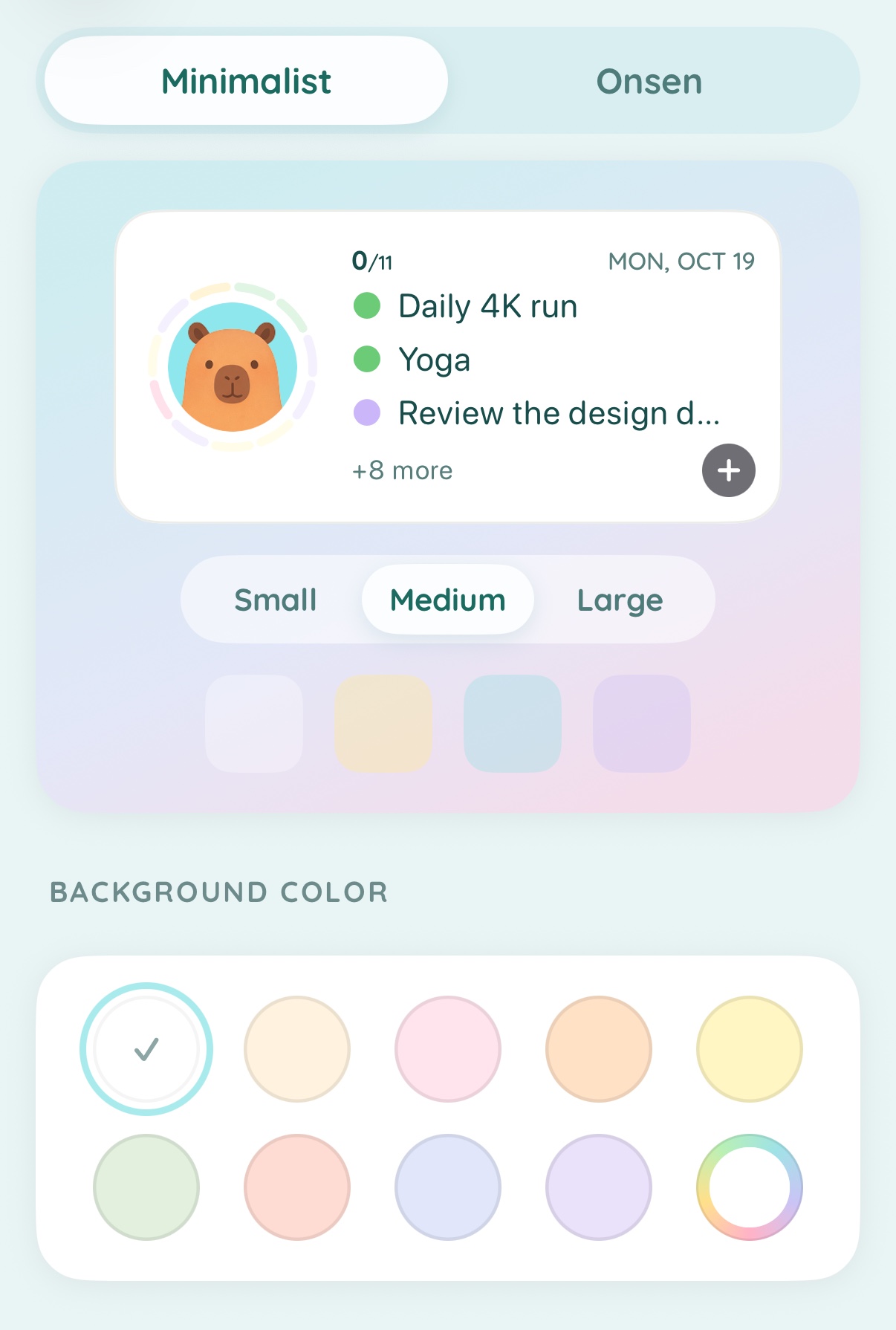
Minimalist keeps it clean: your Capy in a progress ring, a coloured bar for each task, and the list. Onsen adds the scene: Capy lounging in the water next to your tasks. Both come in small (next task plus a tick and an add button), medium (three tasks), and large (the whole day, with a "+4 more" when it's a big one).
Your colour, your capybara
Open Settings → Widgets in the app. Pick a style and size, then choose a background colour: white, cream, pink, peach, yuzu yellow, mint, coral, sky, lavender, or any colour you like. Below that, pick your capybara: Classic Capy, Yuzu Capy, Coffee Capy, Baby Capy, and friends. The preview updates as you tap, and the widget on your home screen follows. A few premium colours and capybaras are part of Capy+.
Lock screen and Apple Watch too
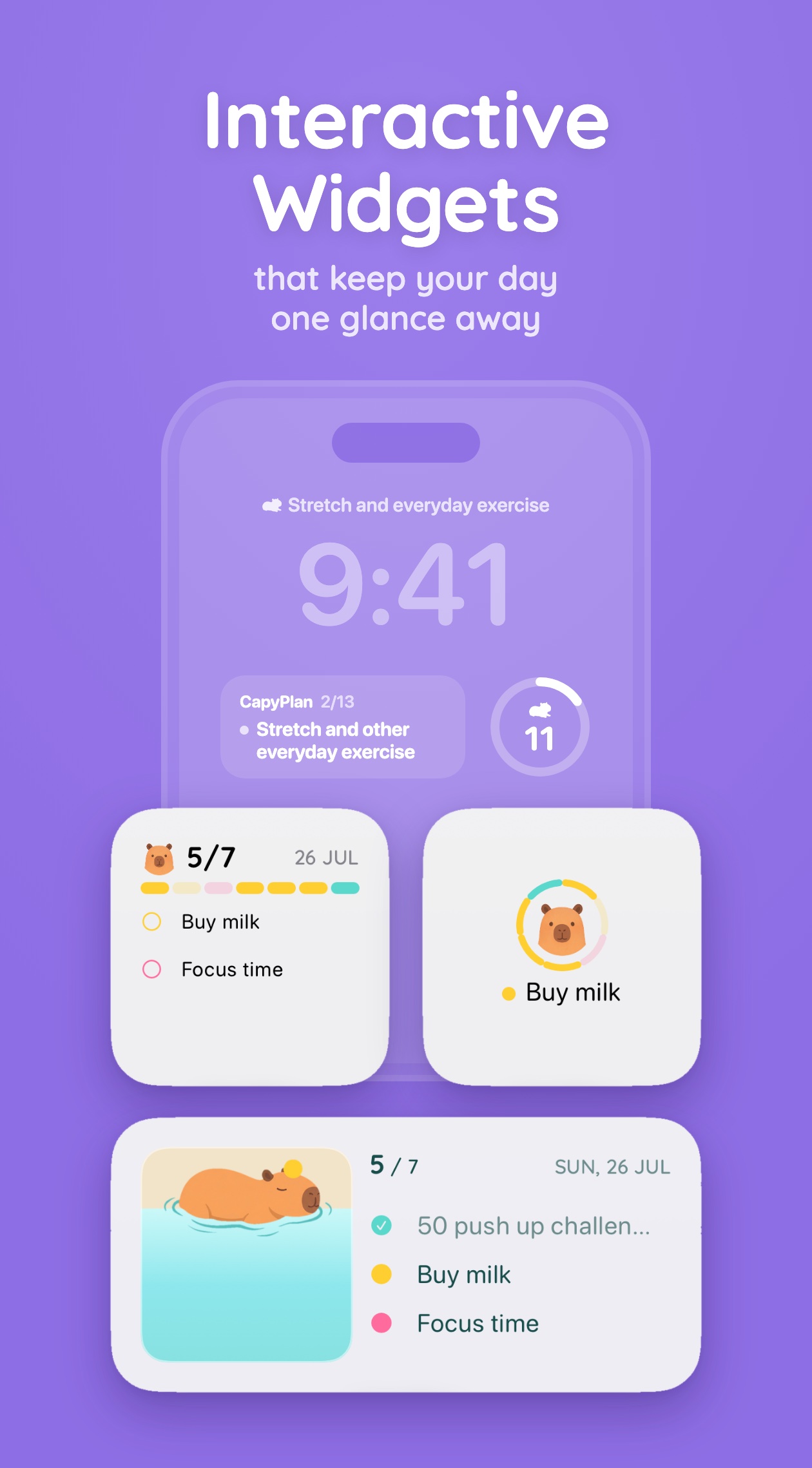
On the lock screen, a small CapyPlan widget shows your next task and how many you've done, and a ring shows the count. On Apple Watch, the same widgets live in your Smart Stack, so a glance at your wrist is enough.
How to add one
- Update CapyPlan on the App Store.
- Long-press your home screen, tap +, and search for Capy.
- Pick a size and tap Add Widget.
- In the app, open Settings → Widgets to choose your style, colour, and capybara.
That's it. Your day, one glance away, with a capybara who's very proud of you.